
What's New For Festivals
Everything shipped to your festival dashboard in the last month — what it is, how to turn it on, and what it actually looks like. Every screenshot below is the real product.
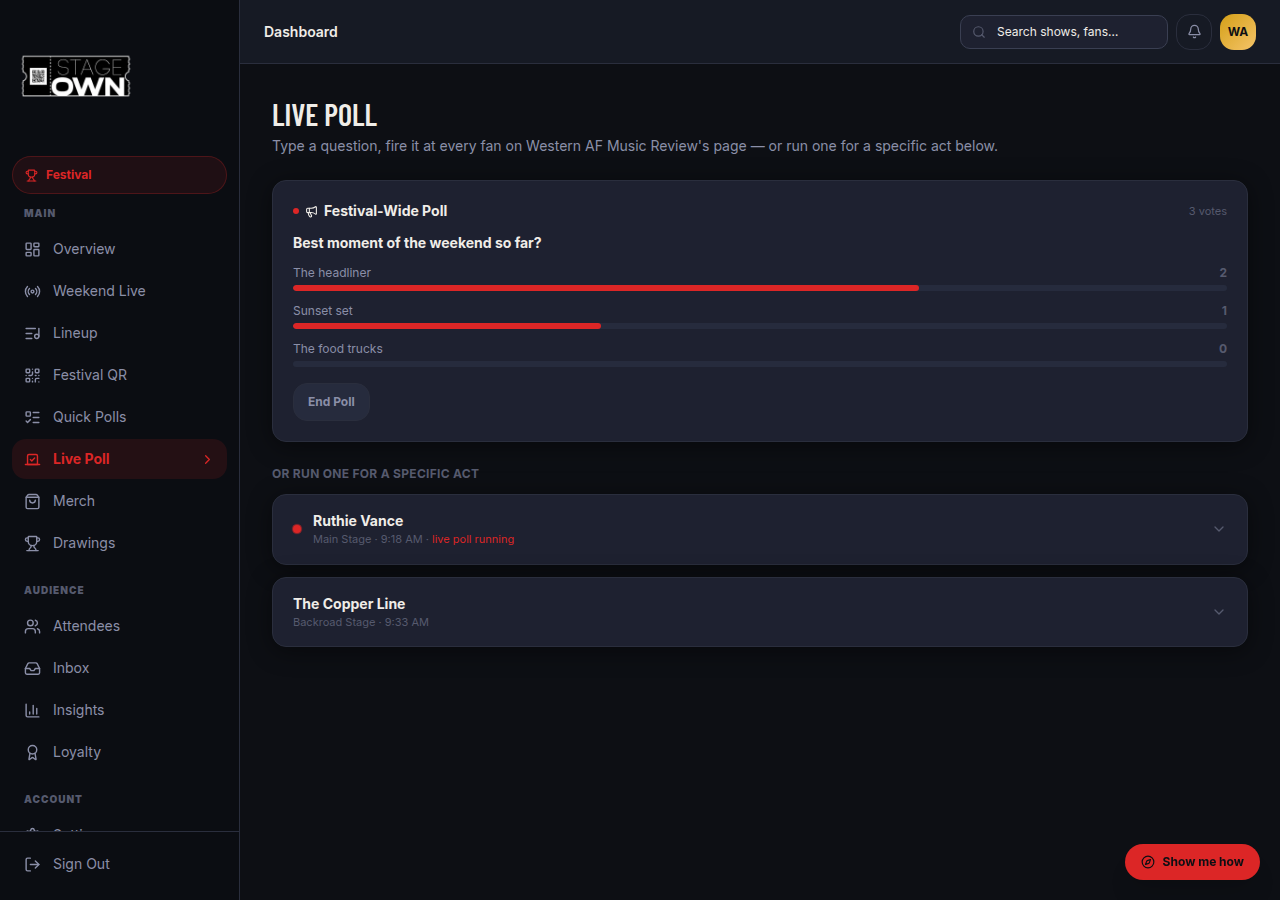
A festival-wide Live Poll — type it, fire it, no act required
Setting up a poll for one specific act every time was real friction on a fast-moving festival day. Now you can also fire a question at every fan on your festival's page at once, regardless of who they picked — same type-a-question-and-go simplicity as an artist's Show Night.
How To
- 1Open Live Poll in your festival dashboard.
- 2The Festival-Wide Poll card is right at the top — type a question and answer choices.
- 3Hit Start Live Poll. Every fan on your festival's page can vote immediately.
- 4Restart it as many times as you want through the weekend — every past round saves to Poll History.
A Live Poll shortcut, right from Weekend Live
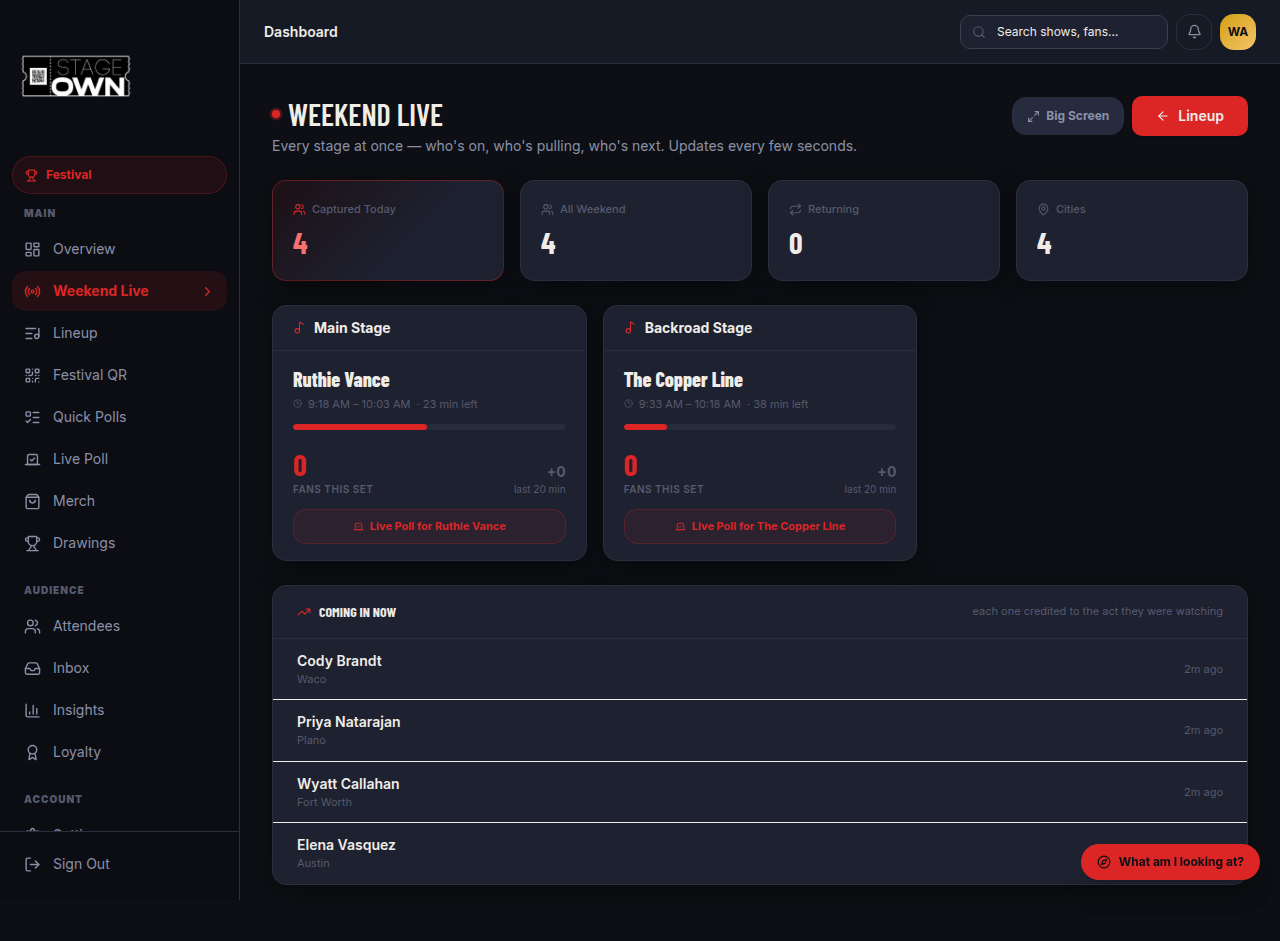
Prefer a poll scoped to one specific act instead? Every "on now" stage card on Weekend Live has a Live Poll shortcut that jumps straight to that act, pre-loaded and ready to type a question — no more hunting through the full lineup to find who's playing right now.
How To
- 1Open Weekend Live during the festival.
- 2On any stage's card, tap Live Poll for [act name].
- 3You land already on that act's poll — type your question and hit Start.
Quick Polls: your own logo, and a fillable "Other"
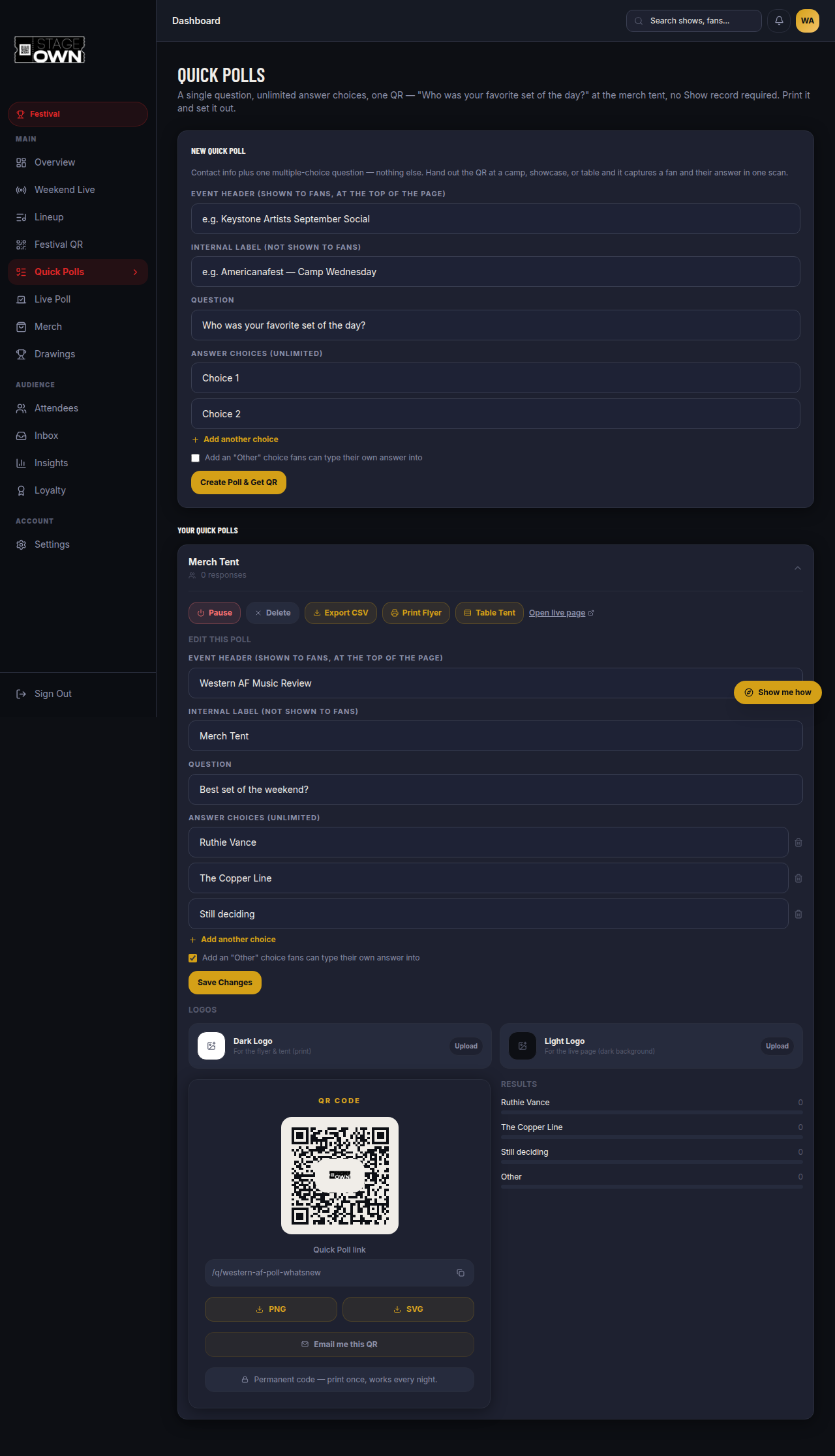
Quick Polls now carry their own dark (print) and light (web) logo, independent of your main festival logo — handy for a sponsor-branded poll. You can also turn on an "Other" choice so a fan can type their own answer instead of picking from your list; it tallies separately in Results.
How To
- 1Open Quick Polls, expand any poll you've created.
- 2Check "Add an 'Other' choice fans can type their own answer into" and Save Changes.
- 3Upload a Dark Logo (for the flyer/tent) and a Light Logo (for the live page) under Logos.
Festival Mode is live — a real full dashboard
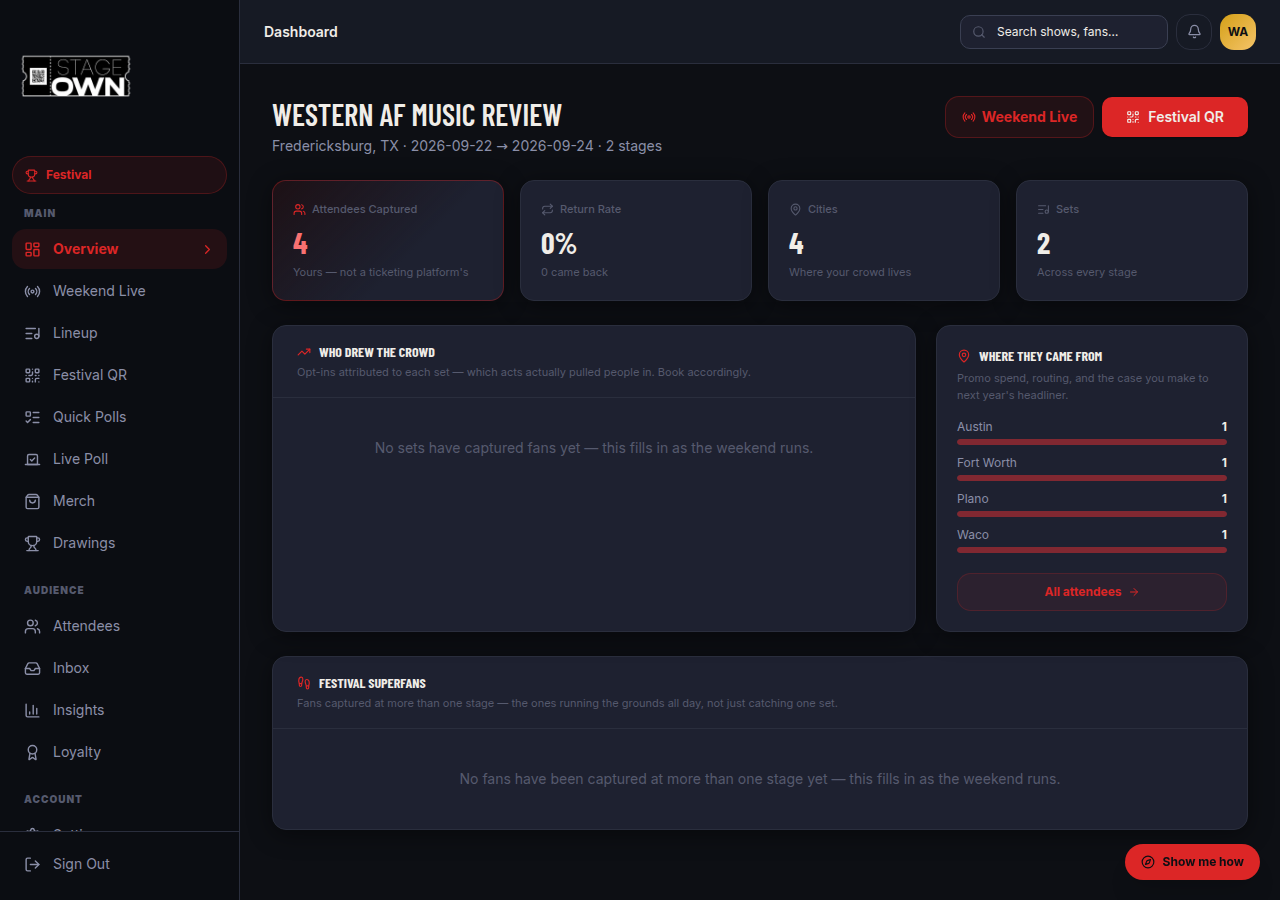
The preview is a real product now. Every festival gets Insights, Loyalty, and Settings alongside the lineup and drawing tools — plus a self-serve Merch tab to sell straight through StageOwn. Every stage gets its own cast-to-TV Stage Screen, and so does the festival as a whole.
How To
- 1Log into your festival account — the full sidebar is already there.
- 2Check Insights for who drew the crowd and where fans came from.
- 3Set up Loyalty tiers and rewards the same way an artist would.
- 4Add products under Merch to sell straight through your festival's page.
The giveaway, promoted everywhere a fan actually looks
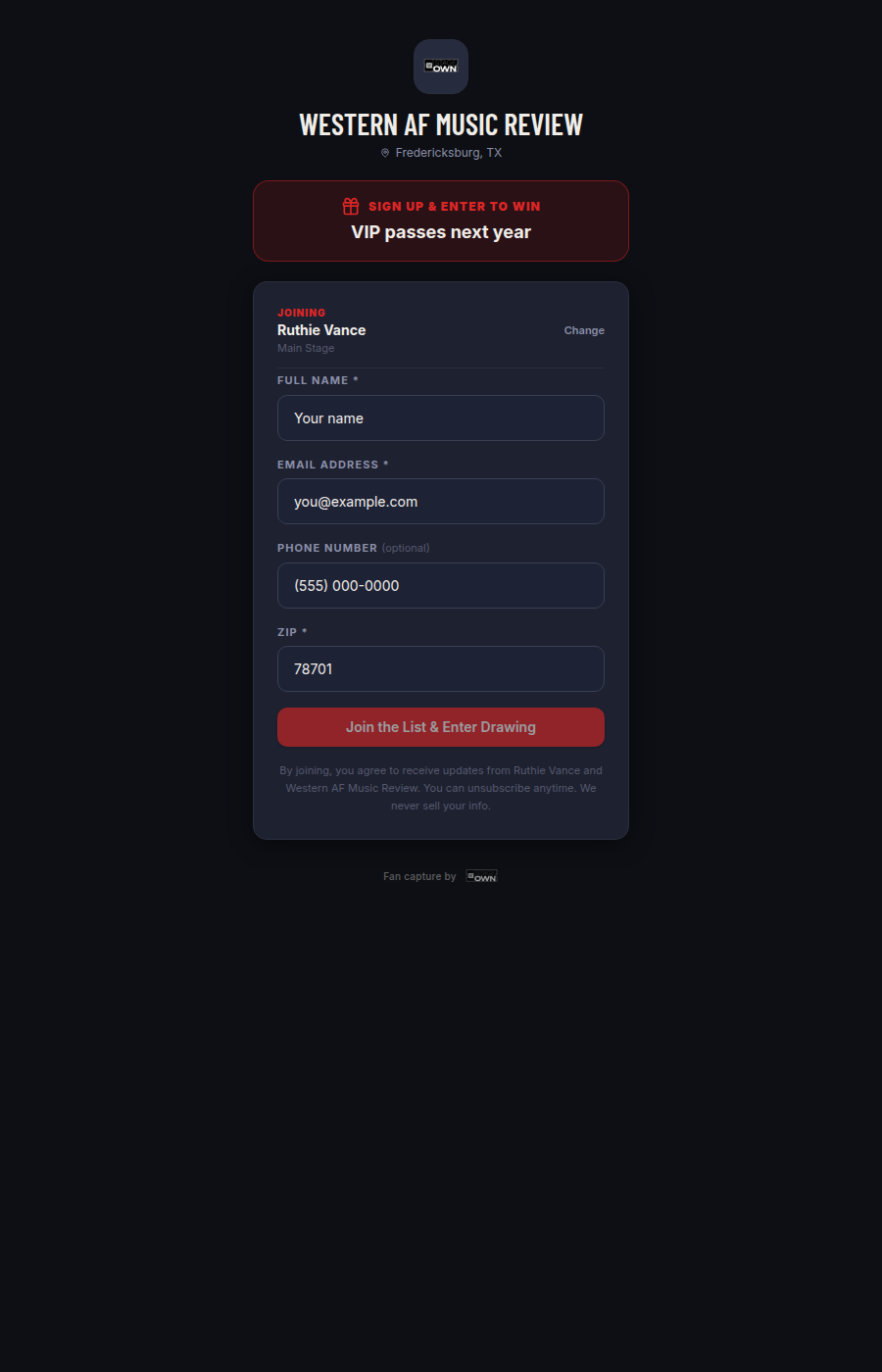
If your festival is running a giveaway, it's now promoted at every touchpoint: a badge on the sign-up form before a fan submits, a green "you're entered" card after, and on both the festival-wide and per-stage Stage Screens — even mid-set.
How To
- 1Turn on your festival's drawing and set a prize under Drawings.
- 2It shows automatically on the sign-up form, the confirmation screen, and every Stage Screen.
That's the last month.
Every one of these is live on your festival dashboard right now — nothing here needs an upgrade to try.