
What's New For Artists
Everything shipped to your dashboard in the last month — what it is, how to turn it on, and what it actually looks like. Every screenshot below is the real product.
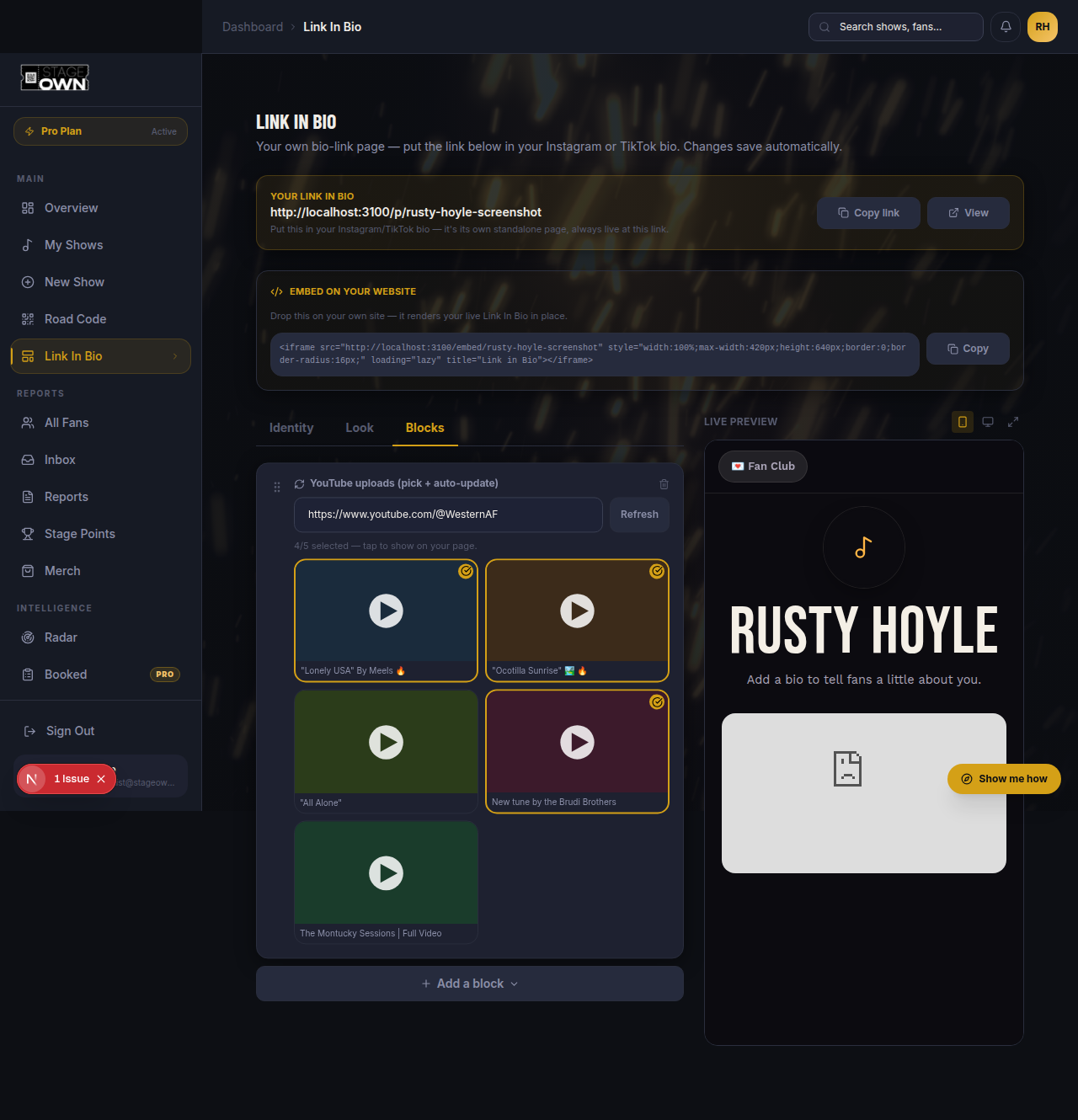
YouTube uploads that keep themselves current
Connect your channel once and pick up to 5 of your real recent long-form uploads from a thumbnail grid — Shorts are filtered out automatically by actual video length, not a guess. It checks itself regularly and rotates in a genuinely new upload, bumping the oldest one shown once all 5 slots are full. An open slot just gets filled; nothing gets removed until it needs to be.
How To
- 1Open Link In Bio and go to Blocks.
- 2Add a YouTube uploads block.
- 3Paste your channel's URL or @handle, then Connect.
- 4Tap up to 5 thumbnails to pick which uploads show.
- 5Come back anytime and hit Refresh to change your picks — otherwise it stays current on its own.
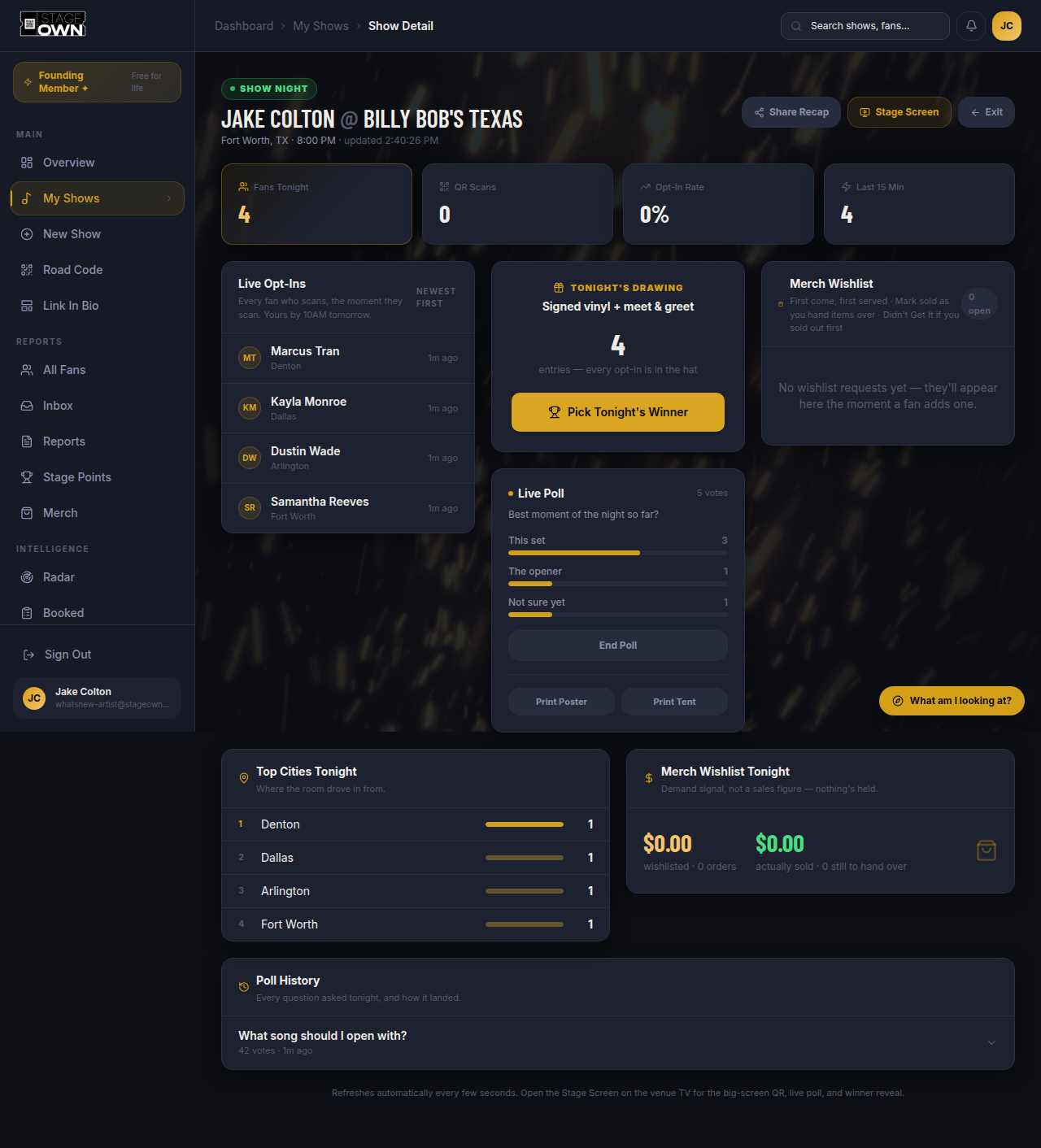
Live Poll — ask the room something, mid-show
The old sign-up poll only ever asked one question, and only at the moment a fan opted in. Live Poll is different: start it, change it, or stop it at any point during the night. It rides the exact same QR your fans already scanned — nobody rescans anything, and a fan who comes back later to vote lands straight on the poll instead of the sign-up form.
How To
- 1Open Show Night for tonight's show.
- 2Find the Live Poll card, type a question and 2+ answer choices.
- 3Hit Start Live Poll — it's live immediately, no new QR to print.
- 4Watch votes tally live on the card, or switch your Stage Screen to Poll mode.
- 5Hit End Poll any time — every past round is saved to Poll History below it.
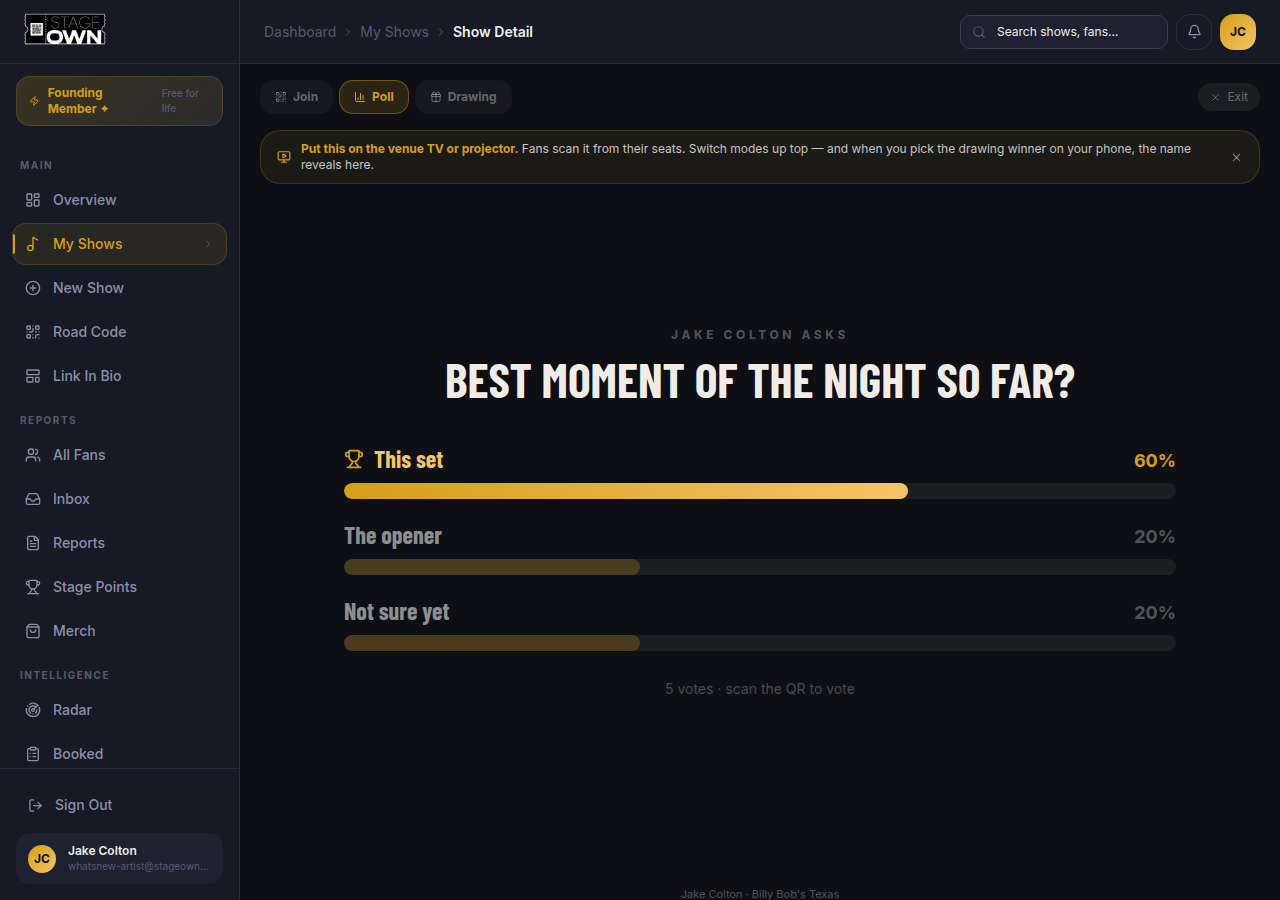
Results on the big screen
Whatever's plugged into the venue TV already had a Join mode and a Drawing mode — it now has a Poll mode too, showing your Live Poll question and results updating in real time as the room votes.
How To
- 1Open your show's Stage Screen (the button's right on Show Night).
- 2Tap Poll up top once a Live Poll round is running.
- 3Leave it up — it refreshes itself every few seconds, no one has to touch it.
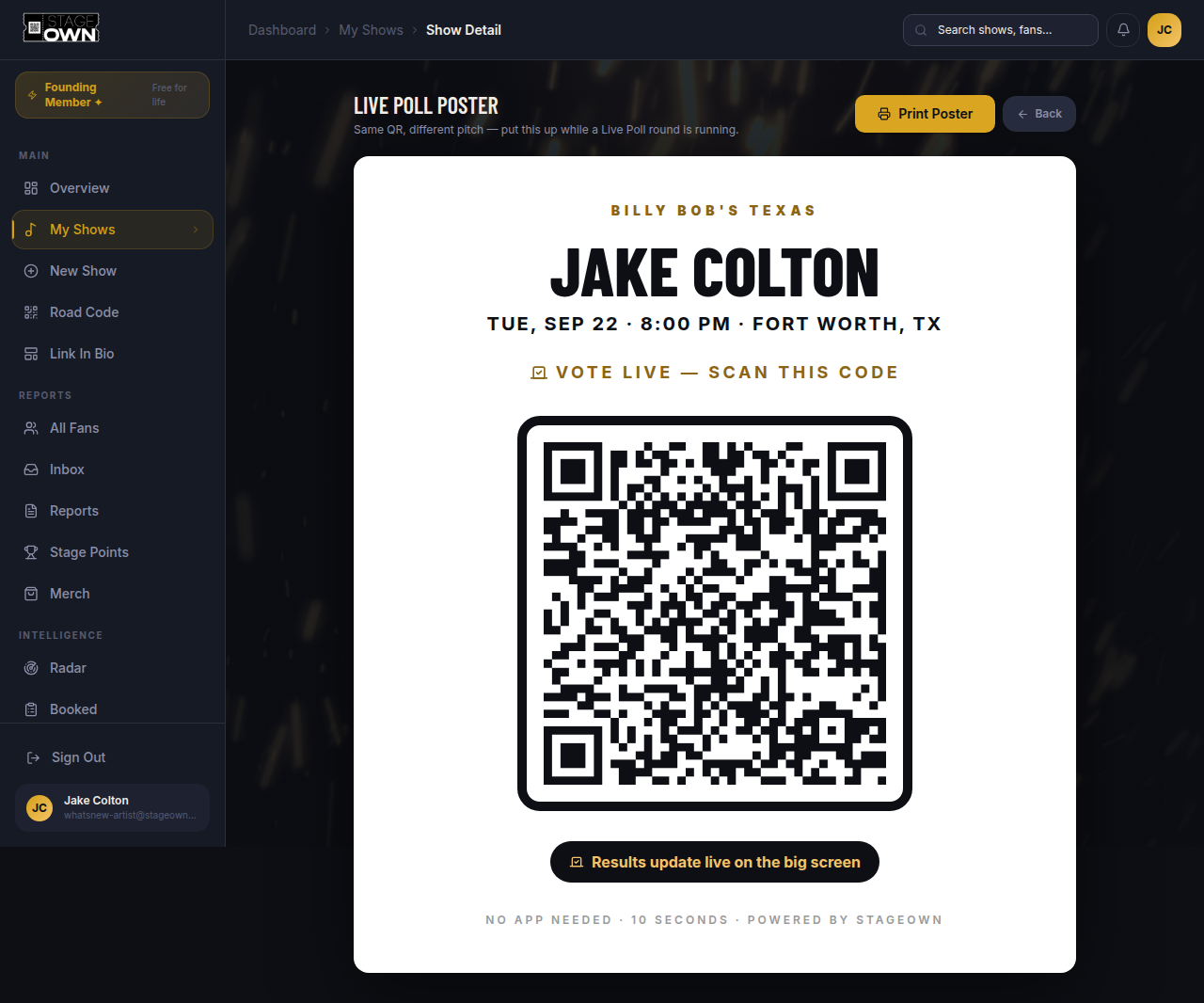
A poster made for whenever a poll's running
Same QR as always — just a print you put up specifically while a Live Poll round is live, instead of the everyday "join the list" sign.
How To
- 1From the Live Poll card, tap Print Poster (or Print Tent for the table-top version).
- 2Print it and set it out whenever you start a round.
Put your Link In Bio on your own website
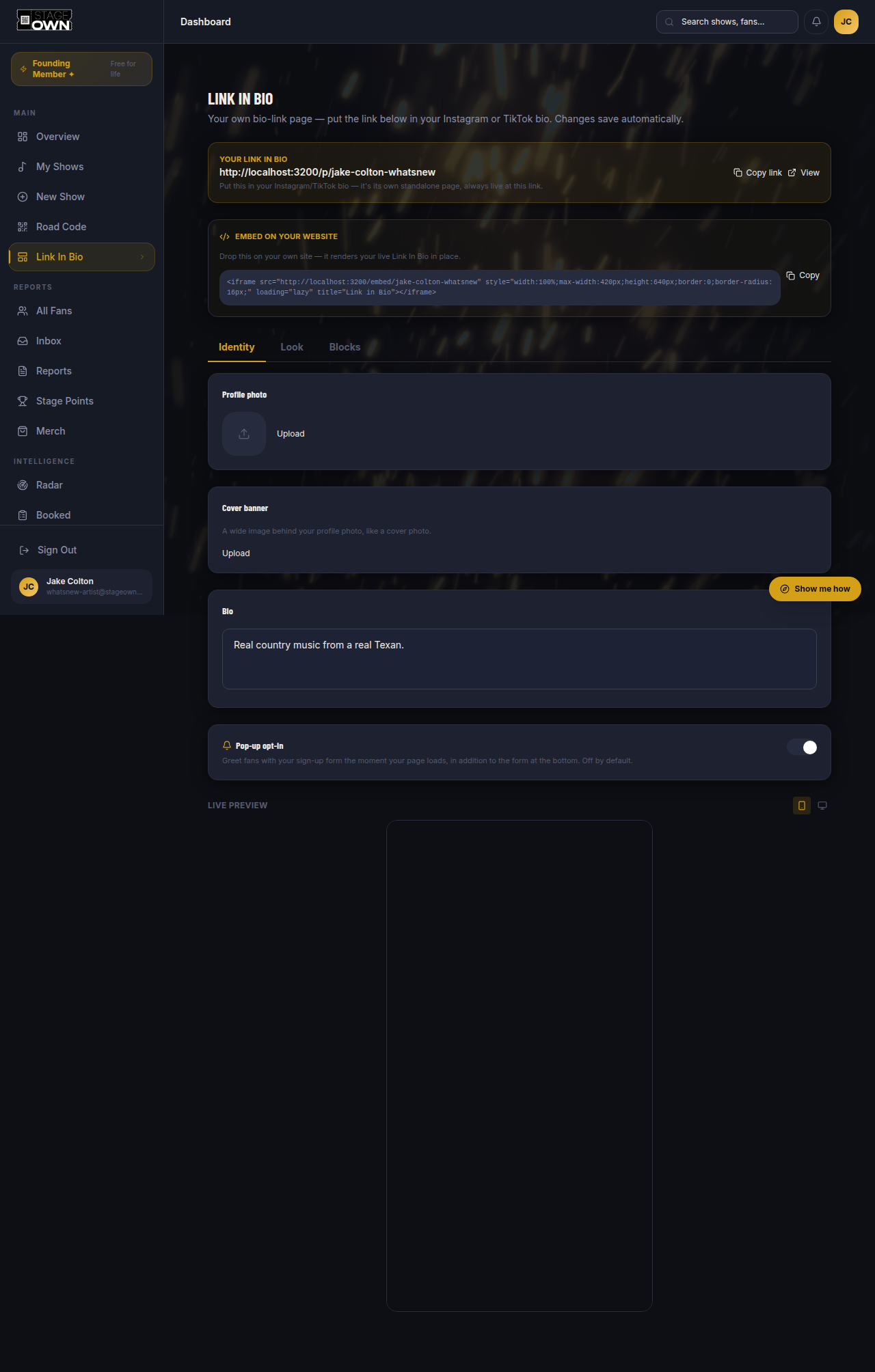
Your bio-link page can now live on your own site too — same live data (shows, merch, socials, the sign-up form), just wherever you already send people, with a copy-paste embed.
How To
- 1Open Link In Bio in your dashboard.
- 2Find the "Embed On Your Website" card — Pro/Pro+ shows the real snippet.
- 3Copy the <iframe> tag and paste it into your own site's HTML.
Your own bio-link page
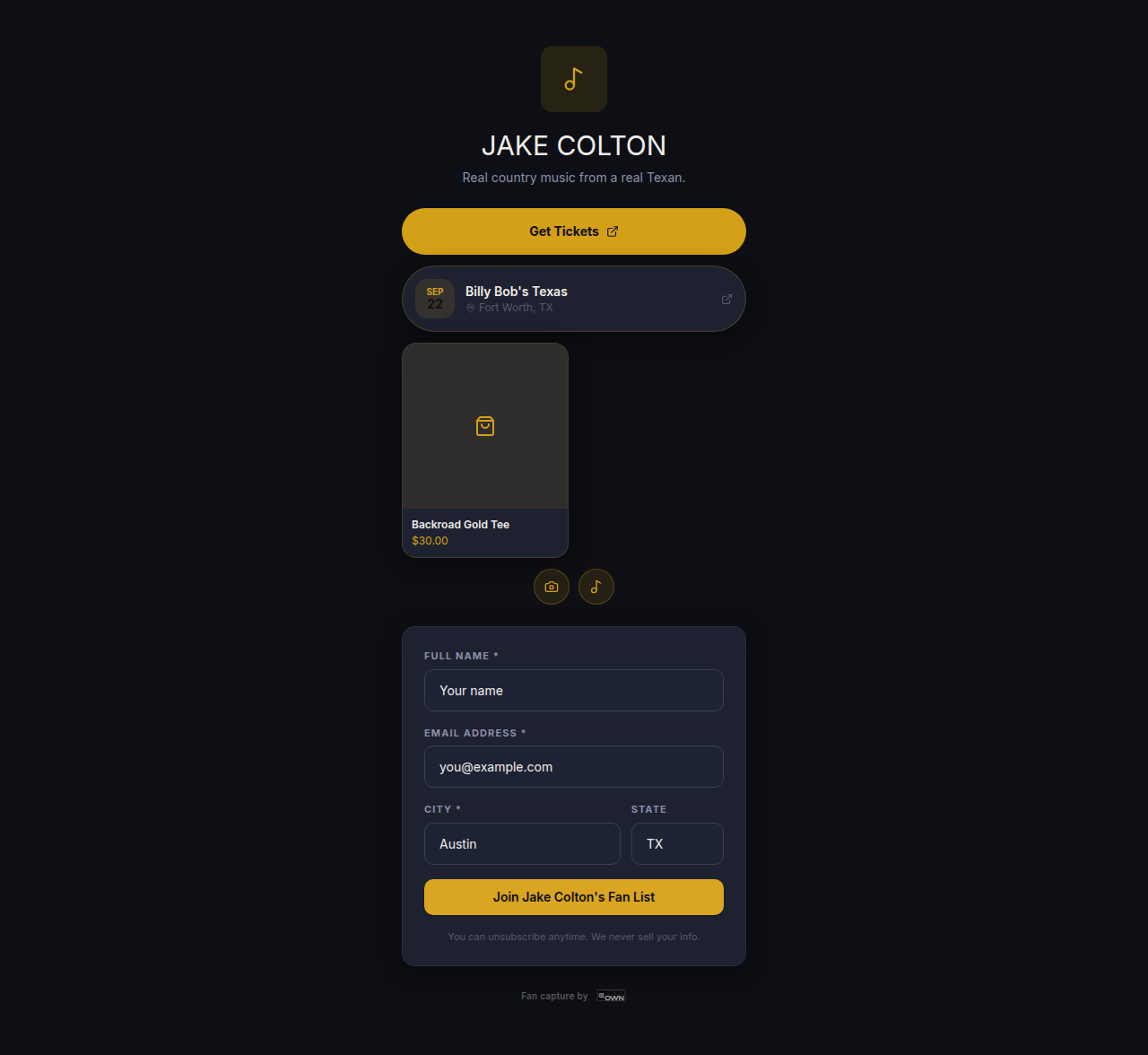
A proper Komi/Linktree-style page — photo, bio, your pick of theme, and a stack of drag-to-reorder blocks: link buttons, a ticket CTA, your socials, a Spotify/YouTube embed, upcoming shows and your merch. It lives at its own permanent link, independent of your show QR.
How To
- 1Open Link In Bio, fill in your photo and bio under Identity.
- 2Pick a font/color theme under Look, or start from a preset.
- 3Add blocks under Blocks and drag them into the order you want.
- 4Copy your permanent link and drop it in your Instagram/TikTok bio.
Turn off tonight's giveaway with one tap
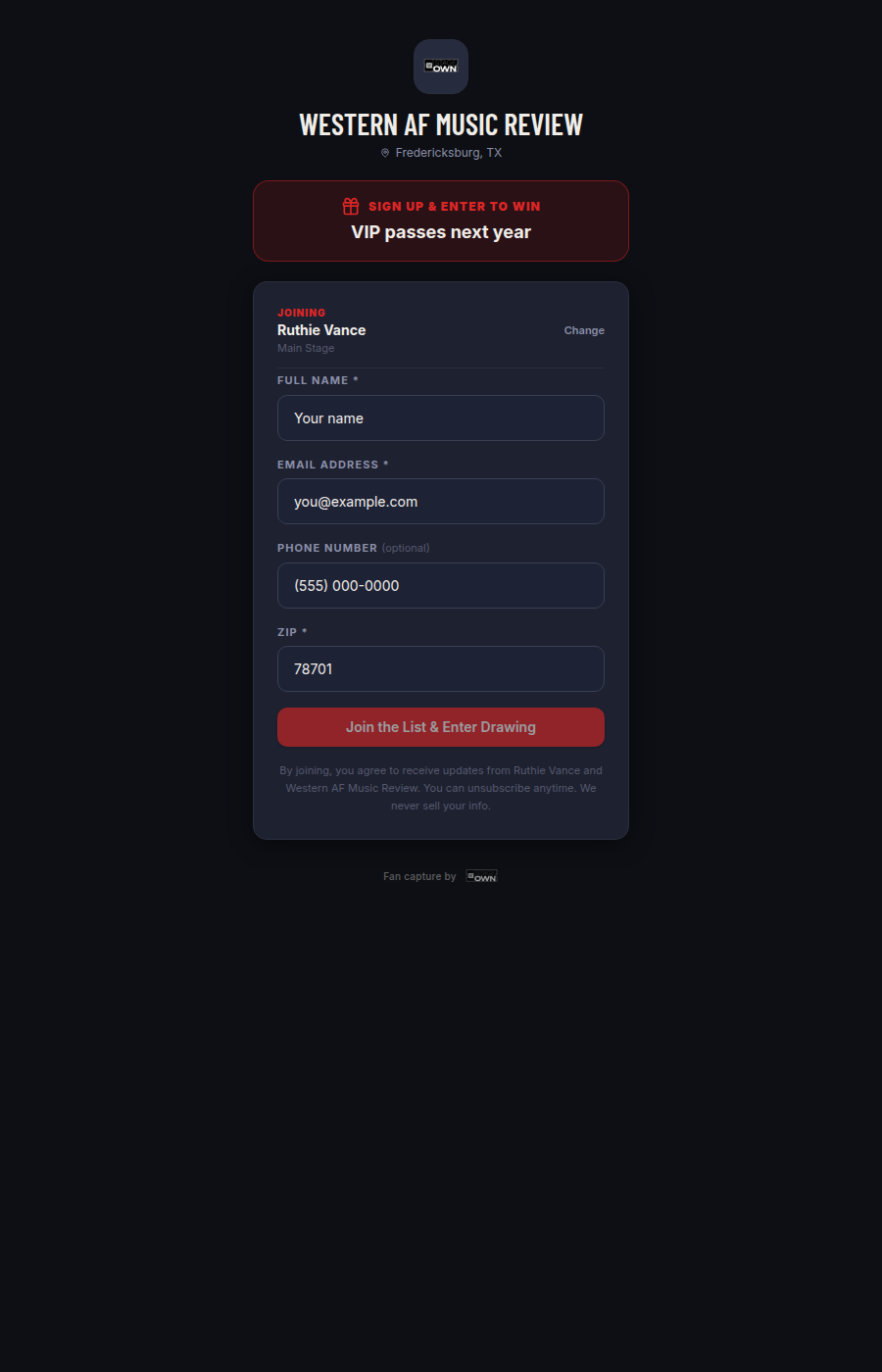
A drawing defaults on for every new show. Now every show page has a Fan Drawing / Giveaway card right at the top — one look tells you if tonight's promising a prize and what it is, and one tap turns it off or changes it, no matter how old the show is.
How To
- 1Open any show's detail page.
- 2Find the Fan Drawing / Giveaway card near the top.
- 3Toggle it off, or tap in to change the prize.
The prize, right where fans can see it
If you're running a giveaway, fans should hear about it before they scan — not after. Every Stage Screen now names the actual prize by default, not a generic "scanning enters tonight's drawing."
How To
- 1Set a drawing prize on your show (Fan Drawing / Giveaway card).
- 2It shows automatically on your Stage Screen's Join view — nothing else to do.
That's the last month.
Every one of these is live in your dashboard right now — nothing here needs an upgrade to try, unless marked Pro/Pro+ above.